
What Are Sidecar Files? And Why They Sometimes Get Left Behind
If you’ve ever browsed through your photo folders and wondered why there are dozens (or even thousands) of strange files with extensions like .XMP, .AAE, or .THM, you’ve found what are known as sidecar files. While these files serve an important purpose, they can also become digital clutter when the original photos are deleted.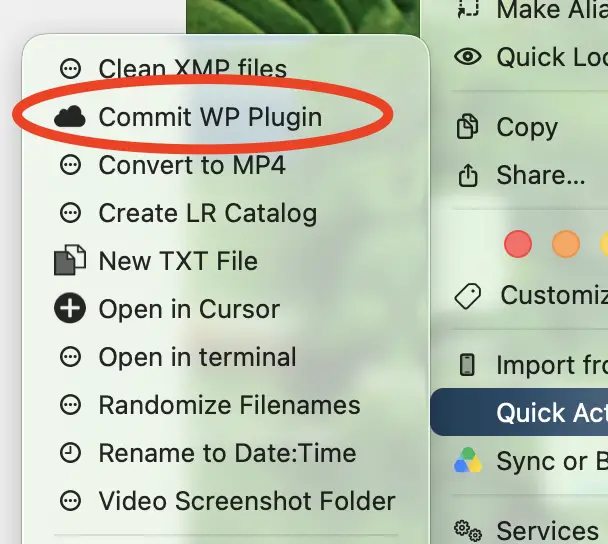
What Is a Sidecar File?
A sidecar file is a small file that stores information related to another file—usually a photograph or video. Rather than modifying the original image, many photography applications save edits, metadata, and settings in a separate file that sits alongside the original image. For example:- Adobe Lightroom / Adobe Camera Raw:
.xmp - Apple Photos:
.aae - Some cameras:
.thm,.pp3, and other metadata files
- Editing adjustments
- Camera settings
- Keywords and ratings
- GPS information
- Color labels
- Copyright information
- Facial recognition data
- Other non-destructive editing information
Why Do Sidecar Files Exist?
One of the biggest advantages of sidecar files is non-destructive editing. Instead of permanently changing your RAW file, editing software simply records your adjustments in the sidecar file. Every time you reopen the photo, the software reads the sidecar file and applies those edits automatically. This means you can:- Revert edits at any time
- Transfer edits between compatible computers
- Preserve the original image forever
- Avoid repeatedly rewriting large RAW files
The Problem: Orphaned Sidecar Files
Unfortunately, sidecar files don’t always get cleaned up automatically. If you delete, move, or rename the original image outside of your photo management software—perhaps directly in Finder, Windows Explorer, or from another application—the sidecar file may remain behind. For example:DSC_1234.ARW
DSC_1234.XMP
DSC_1234.ARW but the .XMP file remains, you’ll end up with an orphaned sidecar file that no longer serves any purpose.
Multiply this by years of photography and it’s easy to accumulate thousands of unnecessary files.
Why This Matters
Orphaned sidecar files generally don’t consume much disk space individually, but they can create several annoyances:- Cluttered folders
- Slower directory browsing
- Confusing backups
- Larger file counts
- More difficult file management
- Unnecessary synchronization to cloud storage or NAS devices
Cleaning Them Up
The safest way to avoid orphaned sidecar files is to manage your photos within your catalog software, such as Lightroom, so the application can remove both the image and its associated metadata together. However, many photographers also organize images directly in Finder or Windows Explorer. Over time, this can leave behind thousands of unused sidecar files. To help simplify this cleanup, I wrote a macOS Automator workflow that scans a folder, checks whether each sidecar file still has its original image, and removes only the sidecar files whose source images no longer exist. Because it only deletes orphaned sidecar files, your legitimate editing data for existing photos remains untouched.A Little Maintenance Goes a Long Way
Keeping your photo archive organized isn’t just about saving storage space—it’s about making your workflow faster and less frustrating. Occasionally cleaning up orphaned sidecar files can leave your folders easier to navigate, reduce backup clutter, and help ensure you’re only keeping files that still serve a purpose. If you’re someone who regularly moves, renames, or deletes images outside your editing software, it’s worth checking your archive from time to time. You might be surprised how many leftover sidecar files have accumulated over the years.The Solution
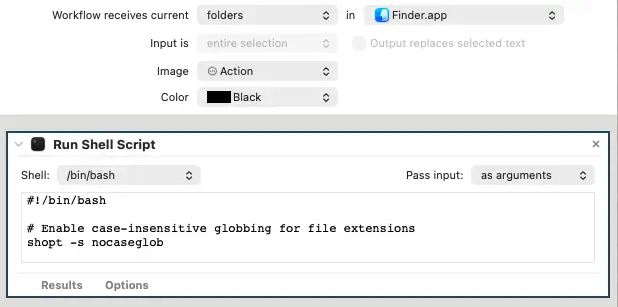
1. Open Automator 2. Select Quick Action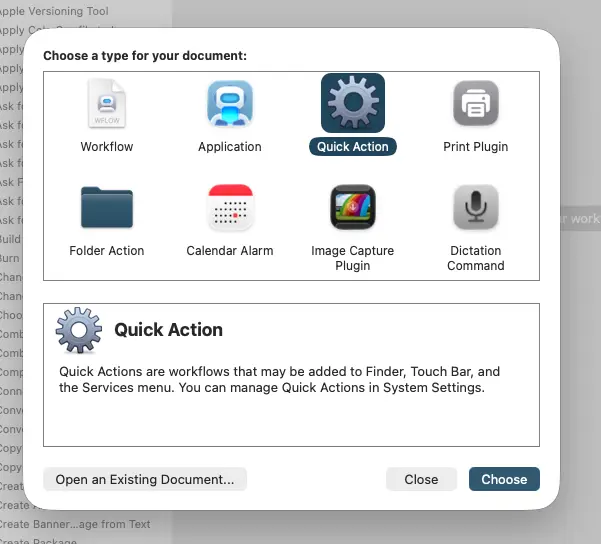
#!/bin/bash

# Enable case-insensitive globbing for file extensions
shopt -s nocaseglob

# Loop through all provided folders
for folder in "$@"; do
    # Change to the folder
    cd "$folder" || continue

    # Loop through all .xmp or .XMP files in the current directory
    for xmp_file in *.xmp; do
        # Check if the file exists to avoid processing the literal pattern if no match is found
        [[ -e "$xmp_file" ]] || continue

        # Get the base name without extension
        base_name="${xmp_file%.*}"
        #echo "$base_name"

        # Check if the corresponding .arw or .ARW file exists
        if [[ ! -f "${base_name}.arw" && ! -f "${base_name}.ARW" ]]; then
            #echo "$xmp_file"
            rm "$xmp_file"
        fi
    done
done

# Disable case-insensitive globbing to restore default behavior
shopt -u nocaseglob
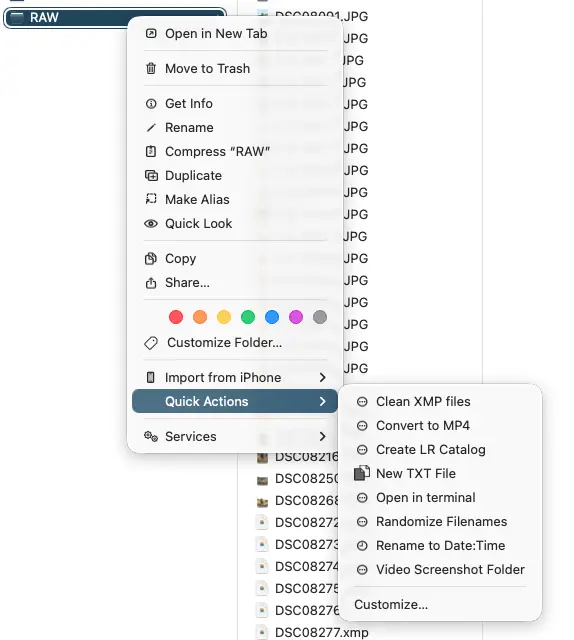
Watch it work in action!
Final Thoughts
Keeping your files and folders clean will help you save space, make file transfers faster, look nicer, archive better, and make it easier to find files in the future.
Posted in For Photographers
Subscribe
0 Comments
Oldest